Mobile manager dashboard: the supervisor sees, approves and records on site.
Manager app: supervisors see who came in, who didn't and daily anomalies; leave approval, overtime, work schedule, incident reports and İSG by phone.
Manager mode: one app, panels opened for your role
Users sign in with a manager account and switch between employee and manager mode; if no panel is opened to their role, the app does not switch to manager mode. The location to work on is selected from the top bar; which role sees which panel is set per role in the Manager Screens (Yönetici Ekranları) matrix on the web.
Who is in today and who is not: attendance dashboard app
People who came to work and those who did not at the selected location are shown in summary and detail. For staff tracking, the plant supervisor follows the day's absences from the field, on the phone.
Daily anomalies and missed punches report
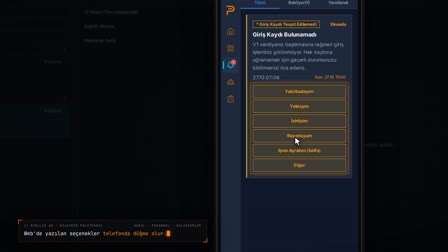
Daily clock-in and clock-out anomalies and employees' responses to them are view-only in the manager panel. From the field, the supervisor sees the explanation given by an employee whose card wasn't read or whose clock-in or clock-out is missing.
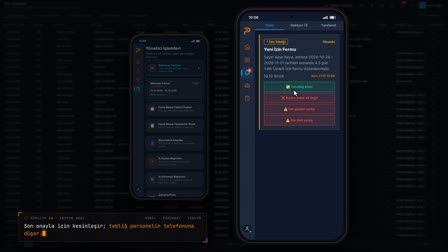
Mobile approval: pending leave requests in the app
Pending leave requests are listed on the phone. The manager approves or rejects the request.
Team management on mobile: overtime, team schedule and calendar
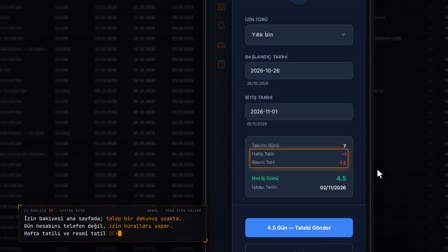
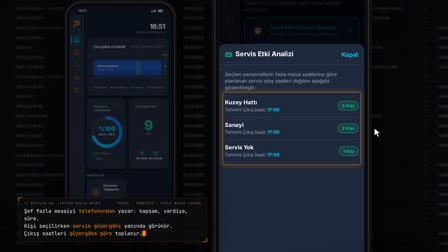
The manager creates overtime requests for employees and manages the list, and views and manages the team's work schedule on the phone. In the location calendar, they complete leave records with a note or reverse them.
Biometric issues, incident reports and İSG (occupational health and safety)
Fingerprint and face scan issues reported by employees are reviewed and resolved. Employee incidents and incident reports are opened from mobile; the manager accesses İSG records from mobile.
Supervisors see only their own departments; critical alerts
A supervisor sees only the departments they are responsible for, and a local manager without department responsibility sees all departments at the location. Critical notifications are filtered by role and location permissions and marked as read.
Frequently asked questions
What is mobile approval?
Mobile approval means a manager approves or rejects pending requests on the phone without going back to a computer. In Pulsar, leave requests are listed in manager mode and decided with a single tap.
How does a manager approve leave on the phone?
In manager mode, the leave approvals panel shows pending requests; a request is opened and approved or rejected.
Which departments does a supervisor see in the supervisor app?
A supervisor sees only the departments they are responsible for; a local manager with no defined responsibility sees all departments at the location.
How to see who is absent today on the phone?
The present / absent board shows who came to work and who didn't at the selected location, with a summary and details.
How does a manager see an employee whose fingerprint wasn't read?
The employee's biometric issue report lands in the manager's biometric issues panel; the manager reviews and resolves it.
Can a manager write an incident report on mobile?
Yes. The employee incident / report panel opens the incident and the report record from the mobile app.
How is it decided which manager sees which panel?
Role-based mobile permissions are granted in the Manager Screens matrix on the web: mobile panels are turned on or off for each role; a user with no permitted panel cannot switch to manager mode.
Can a shift supervisor or foreman use the manager app?
Yes. A supervisor, manager or authorized user signs in with a manager account; there is no separate shift supervisor or foreman app, it is the manager mode of the same app. The departments and panels shown depend on the role and department responsibility.