Convert attendance anomalies to leave right where you see them
Without losing context: select, right-click, save.
The screens in this film were recorded from the Turkish interface of Pulsar HRM.
Leave from the Timesheet: creating leave forms from the timesheet
In Timesheet Monitoring (Puantaj İzleme), the selected days arrive pre-filled on the leave form with a right-click; on saving, the document is generated and the rows are recalculated. For hourly leave, the duration comes from that day's missing working time.
Selected days arrive pre-filled on the leave form
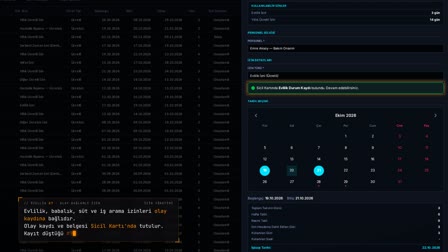
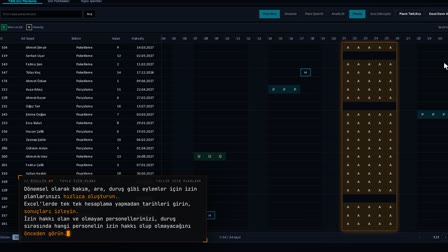
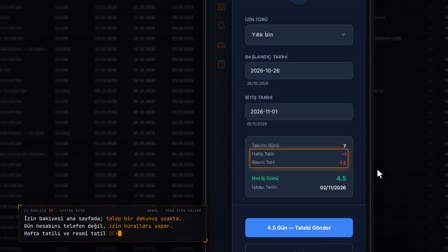
In Timesheet Monitoring (Puantaj İzleme), the employee's days are selected with Ctrl + click, and right-clicking opens "Create Leave/Sick Leave" ("İzin/Rapor Oluştur"). The form arrives pre-filled with the employee, the range formed by the earliest and latest dates and the note "Created from Timesheet Monitoring" ("Puantaj İzle üzerinden oluşturuldu").
Leave reflected in the timesheet: document ready, row recalculated
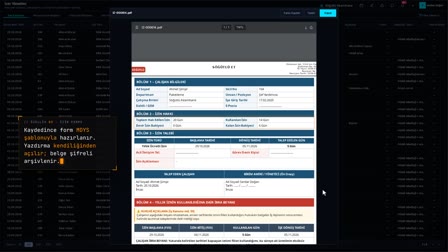
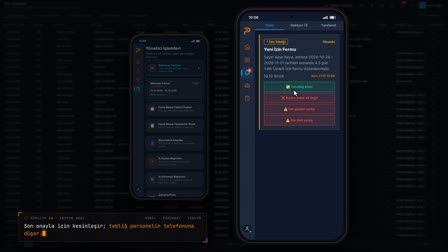
When the leave type is selected and saved, the leave document is prepared and printing opens; the approved leave is written to the daily plan and the timesheet row is recalculated. The leave type appears in the Actual (Gerçekleşen) column.
Hourly leave tracking: covering missing time with administrative leave
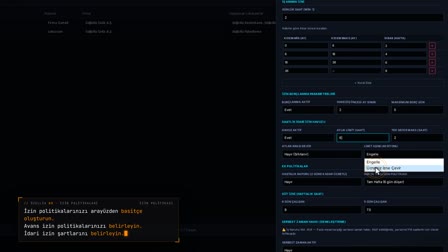
When "Hourly Administrative Leave" ("Saatlik İdari İzin") is selected on a day with missing time, the hours used are taken from that day's missing time; an "S" badge appears in the Actions (İşlem) column of the day the hourly leave is linked to.
No multi-day leave on days with clock-in and clock-out records
A multi-day full-day leave whose range includes clock-in/clock-out records is rejected; this way, a day actually worked is not recorded as leave.
How it works
- In Timesheet Monitoring (Puantaj İzleme), you select the employee's days to be converted to leave with Ctrl + click.
- You right-click and select "Create Leave/Sick Leave" ("İzin/Rapor Oluştur"); the form opens pre-filled with the employee and the date range.
- You select the leave type and save; the leave document is prepared, printing opens and the rows are recalculated.
- On a day with missing time, you select "Hourly Administrative Leave" ("Saatlik İdari İzin"); the hours used come from that day's missing time.
- An "S" badge (for saatlik, hourly) appears in the Action (İşlem) column of the day linked to hourly leave.
Frequently asked questions
Which details are pre-filled on a leave form opened from the timesheet?
The employee from the rows you selected, the range from the earliest to the latest date and the description "Created via Timesheet Monitoring" ("Puantaj İzle üzerinden oluşturuldu") come pre-filled on the form.
Do you need to enter hours manually for hourly leave?
No. For hourly leave types, "Hours Used" ("Kullanılan Saat") is taken from that day's missing time.
Is the timesheet updated after leave is saved?
Yes. Approved leave is written to the daily plan, the timesheet row is recalculated and the leave type appears in the Actual (Gerçekleşen) column.
Can leave be recorded afterward for an employee who did not show up?
Yes. Days shown as Absent (Gelmedi) are selected in Timesheet Monitoring (Puantaj İzleme) and converted to leave with "Create Leave/Medical Report (İzin/Rapor Oluştur)". The timesheet correction is completed on saving: the rows are recalculated.
Can sick leave be recorded from the timesheet?
Yes. It is entered from the same "Create Leave/Sick Leave" ("İzin/Rapor Oluştur") menu by selecting the sick leave type.
What happens if multi-day leave includes a day with clock-in and clock-out records?
A multi-day full-day leave whose range includes clock-in/clock-out records is rejected; the day worked must be separated from the leave.