Overtime tracking: it starts in the plan, is recorded on approval and closes with actual hours
Planned and worked, on the same screen.
The screens in this film were recorded from the Turkish interface of Pulsar HRM.
Overtime: overtime planning and tracking
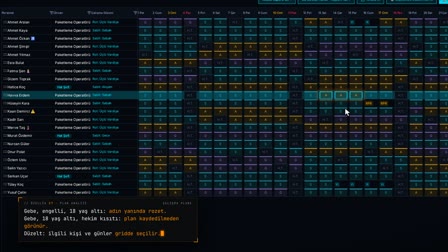
In the Overtime Plan (FM Planı), no overtime request can be opened for employees who are on leave, on sick leave or have no schedule. Post-shift requests are entered for the filtered people; the request type comes from that day's schedule and the net duration is calculated. A legal warning appears for anyone exceeding the weekly maximum, and the decision stays with the authorized person. Approved overtime reaches the employee's phone; the difference between requested and actual hours is shown on the same screen.
Overtime planning: the overtime request opens from the day's schedule
In the Overtime Plan (FM Planı), the day and department are selected, and employees are filtered with status, shift and route chips. The request includes the overtime type (pre-shift, post-shift, full day or weekly rest day/public holiday work), time range, reference shift, break and justification; no request is opened if there is no work schedule or if there is leave/sick leave, and a warning appears if overtime already exists.
Overtime calculation: computing net overtime duration
The net overtime duration is calculated by deducting the break and extra break from the gross duration; additional time beyond the reference shift duration is shown separately. Actual overtime, on the other hand, is calculated in the timesheet from work that exceeds the shift.
Overtime approval and cancellation
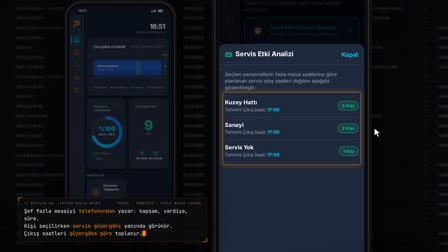
Selected overtime plans are approved in bulk with "Approve Overtime" ("FM Onayla") and are reflected in the timesheet. A single request, a bulk request group or a selection can be canceled. If notifications are enabled, the approved overtime reaches the employee's phone; the employee responds with "I approve" ("Onaylıyorum"), "This overtime isn't mine" ("Bu fazla mesai bana ait değil") or "I have an excuse" ("Mazeretim var").
Track employee overtime hours: planned vs. actual and the difference
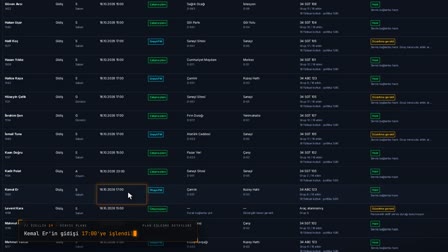
The Current Requests / Actuals (Mevcut Talepler / Gerçekleşme) tab shows the net requested duration, the actual overtime and the difference for each request; the Difference Status (Fark Durumu) filter separates requests into Exact, Over, Under and Not Worked.
Overtime report: overtime tracking and calculation sheet in Excel
Summary / Comparison (Özet / Karşılaştırma) gives planned and actual overtime totals by department for a weekly, monthly or yearly period. The overtime plan, actuals and comparison report are exported as Excel and PDF, and the summary report can also be sent by email.
Overtime tracking software: overtime sheet in Excel and PDF
Overtime plans, requests and actual overtime are filtered in the grid as an overtime list; the same list is downloaded as Excel or PDF, and the summary report is sent by email.
Legal warning: maximum weekly working time
At request time, a warning is generated according to the overtime rules in the policy engine; for example, "Maximum weekly working time" ("Haftalık azami çalışma süresi") appears for a person who exceeds the maximum in that week. The warning does not block saving; the decision stays with the authorized user.
Overtime types kept separate in the timesheet: weekly rest day, public holiday, night
The timesheet keeps overtime separately as regular day overtime, weekly rest day overtime, national and religious public holiday overtime and night overtime; Sunday or holiday work appears in its own column.
Shuttle impact and permission scope
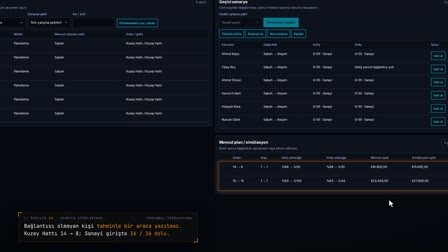
The impact of the overtime plan on the employee shuttle arrival/departure distribution and routes appears in the draggable Shuttle Impact Panel (Servis Etki Paneli). The employees and departments for which the user can open overtime are filtered according to their permissions.
How it works
- In Overtime Plan (FM Planı), you select the day and department and filter employees with the status, shift and route chips.
- You right-click the selected employees and choose "Add Employee Overtime" ("Personel FM Ekle"); if anyone is on leave, on medical leave or has no schedule, the request is not created.
- On the request form, the request type comes from the day's schedule; you enter the direction and gross duration, and the net duration is calculated.
- The authorized user approves the saved request with "Approve Overtime" ("FM Onayla").
- On the Current Requests / Actuals (Mevcut Talepler / Gerçekleşme) tab, you see the requested and actual durations along with the difference.
Frequently asked questions
Can an overtime request be created for staff on leave or sick leave?
No. If the selected people include employees on leave, on medical leave or without a work schedule for that day, the overtime request is not created; you need to filter for eligible people and select again.
Does the system block overtime when maximum weekly working time is exceeded?
It does not block it. On the request form, a "Maximum weekly working time" ("Haftalık azami çalışma süresi") warning appears for that person under "Legal Compliance Warnings" ("Yasal Mevzuat Uyarıları"); the decision to save stays with the authorized user.
How to compare planned overtime with hours actually worked?
The Current Requests / Actuals (Mevcut Talepler / Gerçekleşme) tab shows the net requested duration, the actual overtime and the difference for each request. With the Difference Status (Fark Durumu) filter, you can, for example, list requests where less overtime was worked than planned.
How is overtime calculated?
In Pulsar HRM, the net overtime duration is found at request time by deducting breaks from the gross duration; actual overtime is calculated in the timesheet from work exceeding the shift duration and split into regular day, weekly rest day, public holiday and night overtime. The request and the actual are compared on the same screen.
How is overtime pay calculated under İş Kanunu (Turkish Labor Law)?
Under Article 41 of the İş Kanunu No. 4857 (Turkish Labor Act), pay for each hour of overtime is paid by increasing the hourly rate of normal pay by fifty percent. Pulsar HRM splits overtime durations by type and transfers them to payroll with the timesheet; the amount is calculated in payroll.
What is extra-time work, and how does it differ from overtime?
Under Article 41 of the İş Kanunu No. 4857 (Turkish Labor Act), when weekly working time is set by contract below 45 hours, it is the work that exceeds the average weekly time and is performed up to 45 hours; each hour is paid at a rate increased by twenty-five percent. In the Pulsar HRM policy engine, weekly limits are held as rules.
What is the yearly overtime limit under İş Kanunu (Turkish Labor Law)?
Under Article 41 of the İş Kanunu No. 4857 (Turkish Labor Act), total overtime cannot exceed 270 hours in a year. In Pulsar HRM, the policy engine holds the maximum weekly overtime (extra hours) limit as a rule and generates a warning at request time.
How is overtime calculated on public and religious holidays?
Under Article 47 of the İş Kanunu No. 4857 (Turkish Labor Act), if work is performed on national holidays and general holidays, an additional day's wage is paid for each day worked. Pulsar HRM keeps work on these days, including overtime on religious holidays, in the timesheet as public holiday overtime, distinguishing between national and religious holidays.
How to get an overtime report?
On the Summary / Comparison (Özet / Karşılaştırma) tab, the period (weekly, monthly, yearly) is selected; planned and actual totals are listed by department. The report is downloaded as Excel or PDF, and the summary is sent by email.
How to cancel an overtime request?
Requests are canceled one by one, as a bulk request group or as a selection.