Thousands of attendance records filtered in two clicks; the timesheet you see goes to Excel
Filter in two clicks, export what's on screen to Excel.
The screens in this film were recorded from the Turkish interface of Pulsar HRM.
Quick Filter and Report What You See: timesheet filtering and Excel reports
Use Filter Control (Filtre Kumandası) to narrow 8,103 records down to 9 anomalies; right-click to export the on-screen table to Excel exactly as shown.
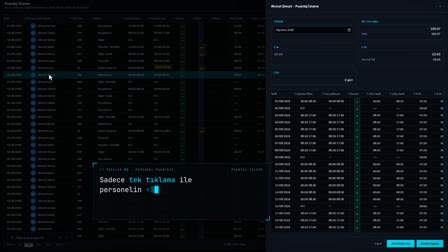
Filter Control: attendance tracking by period, department, shift, status
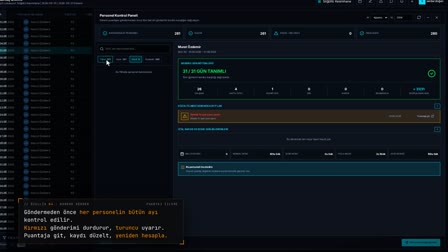
Filter Control (Filtre Kumandası) in Timesheet Monitoring (Puantaj İzleme) narrows the list by period, department, shift, calculation status and employee search; the record count updates with every selection.
Attendance by department: department tree and date tree filters
The department column is a hierarchical tree filter and the date column a date tree filter; when a parent department is selected, its sub-departments are filtered with it.
Attendance anomaly report: absence tracking and missed punch list
When Anomaly (Anomali) is selected in Calculation Status (Hesaplama Durumu), only problem rows remain; no-shows and records with missing clock-ins or clock-outs appear separately.
Report what you see: the attendance report goes to Excel as shown
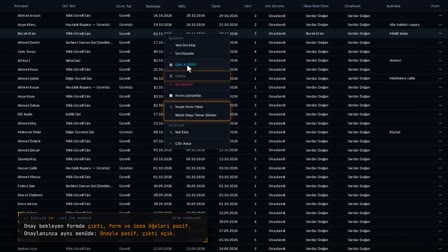
When you right-click the table and choose "Export to Excel" ("Excel'e Aktar"), the columns visible on screen are written to the file in their on-screen order and format. Hidden columns and filtered-out rows do not go into the file; the file is prepared with a "Timesheet Report" ("Puantaj Raporu") title, filter arrows and a footer.
How it works
- In Timesheet Monitoring (Puantaj İzleme), you use Filter Control (Filtre Kumandası); the record count updates with each selection.
- You narrow the list by selecting a department.
- Under Calculation Status (Hesaplama Durumu), you select Anomaly (Anomali) to keep only the records with problems.
- You right-click the table and choose "Export to Excel" ("Excel'e Aktar") from the menu; the on-screen table downloads as an Excel file.
Frequently asked questions
Which columns does the attendance tracker Excel export include?
The columns visible on screen are exported, in their on-screen order and format. A column you hid in Column Settings (Sütun Ayarları) is not included in the file; rows you filtered out are left out.
What does the exported attendance report look like in Excel?
The file is prepared with the title "Timesheet Report" ("Puantaj Raporu"), a colored header row, alternating row colors, column filter arrows and a footer.
What else is in the Timesheet Monitoring right-click menu?
In the general menu, next to "Export to Excel" ("Excel'e Aktar"), there are "Send Timesheet" ("Puantajı Gönder"), "Timesheet Analysis" ("Puantaj Analiz") and "Column Settings" ("Sütun Ayarları").
How to build an attendance exceptions report with only anomalies?
In Filter Control (Filtre Kumandası), select Anomaly (Anomali) as the Calculation Status (Hesaplama Durumu); the list narrows to rows with no-shows or missing clock-ins or clock-outs and can be exported to Excel as is.
How to export a clock-in and clock-out attendance report to Excel?
In Timesheet Monitoring (Puantaj İzleme), select the period and department to filter the list, then right-click the table and choose "Export to Excel" ("Excel'e Aktar"); clock-in and clock-out times and durations go to the file with the visible columns.
How to report one department's attendance separately?
Select the department in Filter Control (Filtre Kumandası) or in the department column's tree filter; the record count updates and the list on screen is exported to Excel.