The supervisor approves on site, and the formal notification reaches the employee's phone
Approval, notification, balance and rejection reason: on two phones.
The screens in this film were recorded from the Turkish interface of Pulsar HRM.
Approval from Your Phone: mobile leave approval and notification
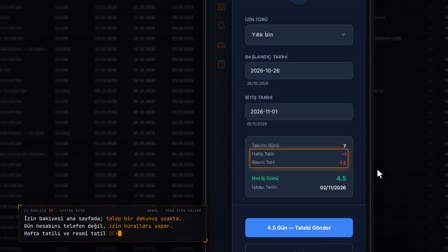
The department supervisor switches to the manager account on their phone, sees the team's status and approves, in the field, the leave request routed by the approval matrix. With the final approval, the balance is deducted. The formal leave notification arrives on the employee's phone, and the acknowledgement of receipt is recorded. A rejection cannot be issued without a written reason; the employee sees the outcome with its reason.
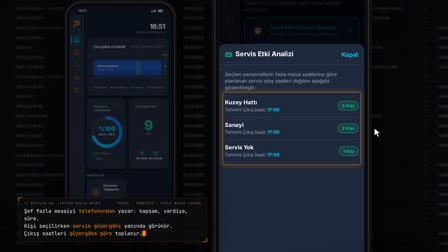
Manager mobile app: switching accounts and team status
On their phone, the department supervisor switches to manager mode with "Switch to Manager Account" ("Yönetici Hesabına Geç") using an authorized username and password; the team status and warning cards appear on the home screen.
Pending approvals from the approval matrix in the manager app
"Pending Leave Approvals" ("Bekleyen İzin Onayları") lists the requests the manager needs to decide on at steps in the approval matrix that are open to mobile approval; the details are opened and approved.
Final approval confirms the leave: formal notification and mobile acknowledgement
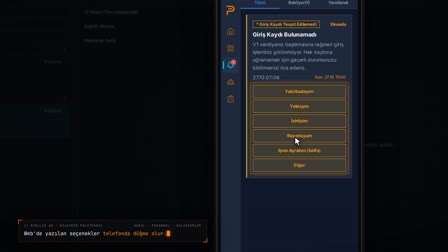
With the final approval, the leave is confirmed and deducted from the balance; a mandatory leave notification arrives on the employee's phone, and the employee responds with "I Acknowledge Receipt" ("Tebellüğ Ettim").
Rejecting a leave request: a reason is required
A rejection requires a reason of at least three characters; the employee receives the outcome as a notification together with the rejection reason.
How it works
- On their phone, the department supervisor switches to manager mode with "Switch to Manager Account" ("Yönetici Hesabına Geç") by entering an authorized username and password.
- On the home screen, they see the team's status and open the requests coming from the approval matrix with "Pending Leave Approvals" ("Bekleyen İzin Onayları").
- They review the request details and press "Approve" ("Onayla"); with the final approval, the leave is confirmed and deducted from the balance.
- A mandatory leave notification arrives on the employee's phone; the employee responds with "✅ I Acknowledge Receipt" ("✅ Tebellüğ Ettim").
- For a rejection, a short reason is written; the employee receives the outcome as a notification together with the reason for rejection.
Frequently asked questions
Which leave requests reach the manager's phone?
For leave steps in the approval matrix that are open to mobile approval, requests the manager needs to decide on are listed on the Pending Requests (Bekleyen Talepler) screen. The manager account must be linked to the manager's own employee record.
Can a leave request be rejected without a reason?
No. The rejection reason must be at least 3 characters; if left blank, the warning "Rejection reason required" ("Red nedeni gerekli") appears. The reason is included in the outcome notification sent to the employee.
Does the acknowledgement of receipt replace an electronic signature?
No. The legal notice screen clearly tells the employee that this notification is for acknowledging receipt of the leave notice and is neither a leave approval nor an electronic signature.
How does the leave approval workflow work on mobile?
The employee's request goes through the steps in the approval matrix; at a step open to mobile approval, the manager opens the request on their phone and decides. With the final approval, the leave is confirmed, deducted from the balance and a formal notification goes to the employee.
When does approved leave come off the balance in the leave approval app?
The moment the final approval is given, the leave is confirmed and deducted from the balance; the employee's My Leave Balance (İzin Bakiyem) card is updated.
Can managers see their team's status on the phone?
Yes. In manager mode, the home screen shows the team's status by shift with planned, arrived, on-leave and absent counts, along with warning cards.
How does a manager sign in to the mobile approval app?
The department supervisor switches to manager mode on the phone with "Switch to Manager Account" by entering an authorized user name and password. The manager account must be linked to the manager's own personnel record.