Timesheet to payroll: errors don't reach payroll, they are fixed at the source.
No data goes to payroll until 31/31 days are validated.
The screens in this film were recorded from the Turkish interface of Pulsar HRM.
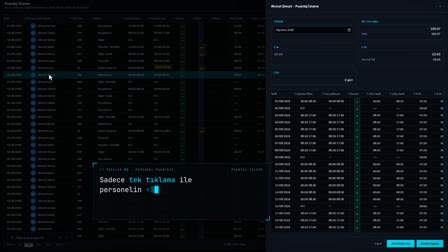
Send to Payroll: validated transfer from timesheet to payroll
Before the timesheet is sent, each employee's entire month is validated; errors are corrected in the timesheet, only reviewed data is sent and the period is locked.
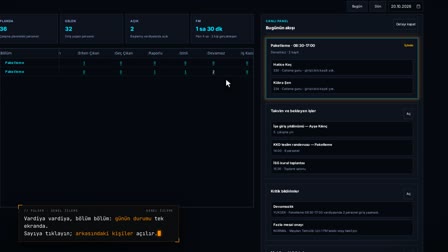
Timesheet control panel: ready and incomplete employees before payroll
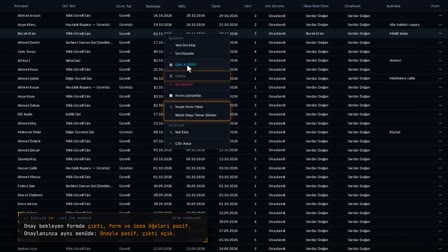
In Timesheet Monitoring (Puantaj İzleme), right-clicking and choosing "Send Timesheet" ("Puantajı Gönder") opens the control panel showing the numbers of ready and incomplete employees; the missing filter shows the day completeness and findings of employees with problems.
Attendance exceptions before payroll: red findings stop, orange findings warn
Red findings such as missed clock-ins/outs and anomalies stop the submission; orange findings are warnings that are reviewed and checked off. The pre-check also lists pending leave, night work restriction findings and activity after exit.
Errors are fixed at the source
"Go to timesheet" ("Puantaja git") drills down to the relevant day; a manual record is added from Clock-In/Out Records (Giriş Çıkış Kayıtları) and the day is verified again with "Recalculate" ("Yeniden Hesapla"). The panel continues where you left off and refreshes only the person who changed.
"I have reviewed this employee" and the data fingerprint
The review mark is tied to the data's fingerprint; if the data changes afterwards, the server rejects the outdated mark and the employee must be reviewed again.
Payroll period close: send the period timesheet and lock the period
With approval, the timesheet is sent to payroll and the period is locked; pending leave requests are resolved. After submission, every value change is recorded as before/after, and the period-end report is printed as a PDF and compared with the later state.
Time and attendance payroll integration: verified transfer with Send to Payroll
Send to Payroll (Bordro Gönder) is the verification step between the timesheet system in PDKS and payroll. Before sending the period timesheet to payroll, the timekeeper checks, employee by employee, the payroll meaning of every calendar day (work, leave, sick leave, weekly rest day, public holiday, absence). A missing or unclear day leads via 'Go to timesheet' to the record to be corrected.
Pre payroll attendance check: missing days, missed punches and anomalies
Red findings such as missed clock-ins/outs and anomalies stop the submission; orange findings are warnings that are reviewed and checked off. The control panel shows the numbers of ready and incomplete employees, and the missing filter opens employees with problems.
Go to timesheet: timesheet errors are fixed at the source
From the panel, you drill down to the relevant day; a manual record is added from Clock-In/Out Records (Giriş Çıkış Kayıtları) and the day is verified again with 'Recalculate' ('Yeniden Hesapla'). The error is fixed in the timesheet, not in payroll.
Timesheet approval process: the 'I have reviewed this employee' mark and its fingerprint
With the 'I have reviewed this employee' ('Bu personeli inceledim') box, the filter and the counter, the check moves forward step by step. The mark is tied to the data's fingerprint; if the source timesheet changes, the mark drops automatically and the server rejects an outdated mark.
Send timesheets to payroll and lock the timesheet
Once missing calendar days and red findings reach zero, "Send period timesheet" ("Dönem puantajını gönder") becomes available; the server uses a digital fingerprint to verify that the submitted list is complete and up to date. The submitted period is locked; the timekeeper can touch a locked period only with a time-limited "timesheet lock" special permission.
Change tracking in a locked timesheet
The submitted period is locked; the timekeeper can touch a locked period only with a time-limited "timesheet lock" special permission. Every change made with this permission is listed in Payroll Preparation (Bordro Hazırlık) by action and field by field, with before and after values.
End of period attendance report: Excel email attachment and PDF
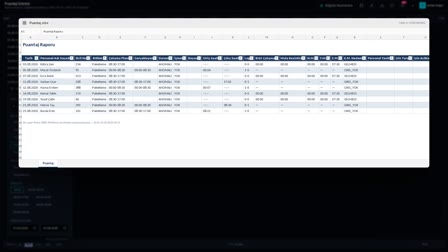
On submission, an Excel report made up of the Summary, Actions, Findings at Lock Time and Tolerance sheets is sent as an email attachment. The same report can also be downloaded from the screen as a PDF.
What does a timekeeper do? Timekeeper duties at month end
In Pulsar HRM, at month end the timekeeper verifies every employee's entire month day by day, corrects gaps and anomalies in the timesheet, reviews warnings and sends the period timesheet to payroll. Because the submitted period is locked, payroll is prepared with the data the timekeeper reviewed.
How it works
- In Timesheet Monitoring (Puantaj İzleme), you right-click and select "Send Timesheet" ("Puantajı Gönder"); a control panel opens showing the numbers of ready and incomplete employees.
- With the Incomplete (Eksik) filter, you open the employees with problems and see day completeness and the red/orange findings.
- With "Go to timesheet" ("Puantaja git"), you drill down to the relevant day, add a manual record from Clock-In/Out Records (Giriş Çıkış Kayıtları) and press "Recalculate" ("Yeniden Hesapla").
- After reviewing the warnings, you tick "I have reviewed this employee" ("Bu personeli inceledim").
- You give your approval with "Send period timesheet" ("Dönem puantajını gönder"); the timesheet is sent and the period is locked.
Frequently asked questions
Which errors stop you from sending timesheets to payroll?
Red findings such as missing clock-ins/outs and anomalies stop the submission; orange findings are warnings that are reviewed and marked.
What happens if data changes after the reviewed mark?
The "I have reviewed this employee" ("Bu personeli inceledim") mark is tied to the data's fingerprint. If the data changes later, the server rejects the outdated mark; the employee must be reviewed again.
Where is an incorrect attendance record corrected?
At its source, in the timesheet: from the panel, you go to the relevant day and add a manual record from Clock-In/Out Records (Giriş Çıkış Kayıtları); "Recalculate" ("Yeniden Hesapla") validates the day again.
How to send timesheets to payroll?
When all employees are ready, approval is given with "Send period timesheet" ("Dönem puantajını gönder"); the timesheet is sent and the period is locked.
Can a timesheet be changed after it is sent to payroll?
It can for a person whose payroll has not been finalized; every value change is recorded with its before and after state. The period rows of a person whose payroll has been finalized cannot be changed.
How to do the month-end timesheet check?
The pre-check lists pending leave and night work restriction findings; the Send to Payroll (Bordro Gönder) panel verifies each employee's whole month for day completeness and shows people with problems in the missing filter.
Who is a timekeeper and what do they do?
In Pulsar HRM, the timekeeper checks each employee's whole month before sending the period timesheet to payroll: they correct missed punches and anomalies in the timesheet, review warnings, then send and lock the period.
What is a timesheet, and how do timesheet and payroll relate?
A timesheet records each of an employee's days in the period as work, leave, sick leave, holiday or absence. In Pulsar HRM, the Send to Payroll (Bordro Gönder) panel shows the payroll meaning of every calendar day employee by employee; payroll is prepared from this timesheet once the timekeeper has sent and locked it.
How to check a timesheet before payroll?
In Pulsar HRM's timesheet application, right-click in Timesheet Monitoring (Puantaj İzleme) and choose 'Send Timesheet (Puantajı Gönder)'; the control panel lists ready and incomplete employees. The incomplete filter opens the problem employee, findings are fixed in the timesheet and 'I have reviewed this employee' is checked.
How does timesheet to payroll transfer work?
When no missing calendar days or red findings remain, 'Send period timesheet' ('Dönem puantajını gönder') becomes available; after approval, the timesheet is sent and the period is locked. Payroll Preparation (Bordro Hazırlık) starts from this locked timesheet.
How to do the payroll period close for timesheets?
Once all employees have been reviewed and the period sent, the period is locked, and an Excel report with Summary (Özet), Actions (İşlemler), Findings at Lock Time (Kilit Anındaki Bulgular) and Tolerance (Tolerans) sheets goes out by email.
How to unlock a locked timesheet, and who can change it?
A sent period is locked; the timekeeper can touch a locked period only with the time-limited 'timesheet lock' ('puantaj kilidi') special permission. Every change made after submission is listed with its before/after value in Payroll Preparation (Bordro Hazırlık).
Whose job is absence tracking?
In Pulsar HRM, the timekeeper approves absences; an approved absence is reflected in payroll, and the weekly rest day of the week with the absence is deducted. The Send to Payroll (Bordro Gönder) panel shows the payroll equivalent of each day, including absences.
How are missing days reported?
Send to Payroll (Bordro Gönder) shows the payroll equivalent of each day; the type of a missing day and the SGK missing-day reason are entered on the payroll adjustment card in Payroll Preparation (Bordro Hazırlık) and appear as missing days in the APHB (monthly premium and service document) summary. The official filing is made in e-Bildirge (SGK's online filing system).