HR software dashboard: simple to use, the thinking behind it is not.
The whole day on one screen, the screen tailored to each user.
The screens in this film were recorded from the Turkish interface of Pulsar HRM.
General Overview: HR software dashboard and usage
The day's status, shift by shift, on one screen; click a number and the people behind it open up. Tabs and zoom in the browser or the desktop app, column layouts saved per user, dark and light themes, five languages, role-based menus and a PIN-protected screen lock.
Real-time staff status: today shift by shift
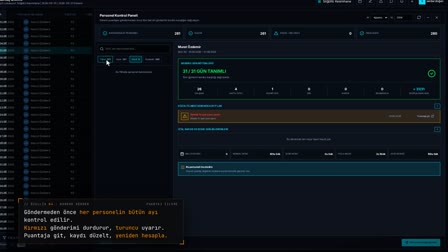
The dashboard counts the active shift, planned, arrived, open and overtime cards. The department × shift grid is filtered with the department filter in the department tree.
Click a number to see the people behind it
When you click a number such as Absent, the Live Panel (Canlı Panel) lists the people on that shift. The calendar, pending tasks, critical notifications and mobile feedback sit in the same panel.
Desktop app and saved column layout per user
In the desktop app, up to five tabs can be opened, screens are chosen from favorites and zoom is adjusted. The column layout is saved from Column Settings: hidden columns and columns reordered by dragging are saved to the user with Save.
Advanced filtering in HR software: Excel like filter and list tools
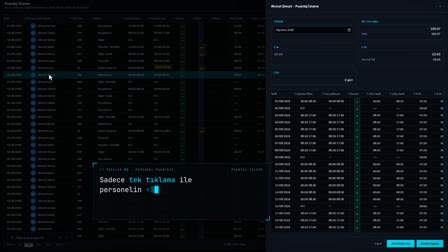
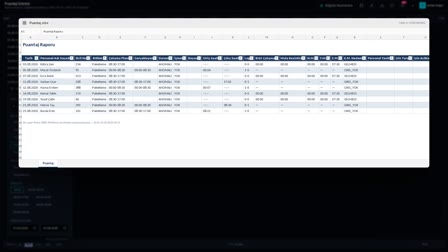
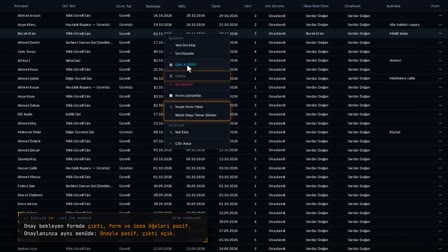
Every list has a right-click menu, an Excel-like multi-select column filter, date tree and department tree filters, a quick filter panel and a choice of 50–1000 records per page. A list can be exported to Excel or CSV, a report can be exported to PDF and sent by email; drag-and-drop file upload is supported, and PDFs and images open in the document viewer.
Theme, language and a menu based on role based access control
In User Settings (Kullanıcı Ayarları), a light or dark theme and the application language are selected; in Arabic, the screen switches to right-to-left. An HR user sees all HR modules, and a department supervisor sees only authorized menus and their own department.
Screen lock with PIN
The screen lock opens with the time and date and is verified with a four-digit PIN. There is an option to sign in as a different user.
How it works
- On the Dashboard, you see the day's summary cards and the department × shift grid, and use the Department (Bölüm) filter to drill down to the department you want.
- You click a number in the grid; the Live Panel (Canlı Panel) lists the employees behind that number and the anomaly explanation.
- In the desktop app, you open screens in tabs, switch between them from ☆ Favorites (Sık Kullanılanlar) and adjust the zoom.
- With right-click › "Column Settings" ("Sütun Ayarları"), you hide columns, drag them into order and save.
- You choose the theme and app language under User Settings › Preferences (Kullanıcı Ayarları › Tercihler); you unlock the screen lock with your PIN code.
Frequently asked questions
Is the saved column layout kept on another computer?
Yes. The column layout is specific to each user; it is stored first in the browser and then in the database, so the same layout appears when you sign in from another computer.
Does every user see the same menu?
No. The side menu is built according to role permissions; an HR user sees the HR modules, while a Department Supervisor sees only the modules they are authorized for.
How many screens can you open at once in the desktop app?
Up to 5 tabs can be open in the desktop app's top bar; you reach the screens you use often from the Favorites (Sık Kullanılanlar) and Recent (Son Kullanılanlar) lists in the ☆ menu.
What does the HR software dashboard show?
The day's active shift, planned, present, open and overtime counts, and the department × shift grid appear; clicking a number opens the people behind it.
How to hide columns and save the column order?
Right-click › Column Settings: hide columns, drag them into order and press Save. Hidden, reordered and resized columns are stored per user and open the same on every computer.
Can the software be used in different languages?
Yes. The application language is selected per user; when Arabic is selected, the screen switches to right-to-left.
Which menus does a department supervisor see?
They see the menus opened to their role; the main screen shows only the department they are responsible for.
How to unlock the screen with a PIN?
On the lock screen you sign in with a four-digit PIN; once verified, the session continues where it left off.
Can you open multiple tabs in the desktop app?
Yes. Up to five tabs can be opened; frequently and recently used screens are selected from the menu.
How to see who is at work and who is absent on the dashboard?
The dashboard shows arrived and open counts in the department × shift grid. Click a number such as Absent and the Live Panel lists the people in that shift with an anomaly explanation.