Notification policy: HR writes the options, and they become buttons in the employee app.
Notification text and response options are written on the web.
The screens in this film were recorded from the Turkish interface of Pulsar HRM.
Notification Policy: employee notifications and response options
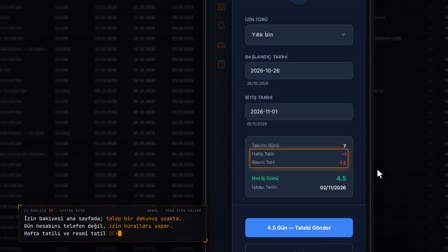
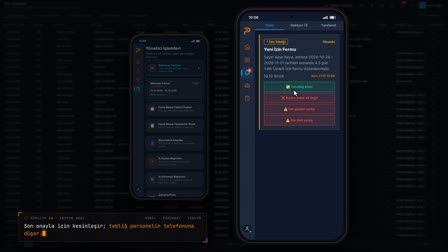
In Widget & Menu Settings (Widget & Menü Ayarları), HR chooses which cards appear on the phone. In Notification Policy (Bildirim Politikası), the warning text and response options of the "No Entry Record Detected" ("Giriş Kaydı Tespit Edilemedi") notification are written. On the phone, the employee picks one of the options and writes an explanation; the response is recorded with the IP, the device and a SHA-256 hash, and the explanation appears on that day's timesheet row.
Mobile app settings for employees by location: home cards and requests menu
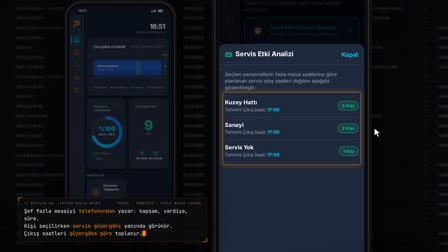
In Widget & Menu Settings (Widget ve Menü Ayarları), you choose, per location, which cards appear on the phone and in what order, and which items appear in the Requests (Talepler) menu. A card that is turned off does not appear on the employee's phone, and the saved order is reflected on the home screen.
Setting up a notification policy: type, location and recipient rules
In the builder, you choose the notification type, location and recipient job titles or roles to set who receives which notification; notification recipient rules are saved for the selected job titles. Unassigned types are flagged.
Notification templates: message text and response options
The title and message of the notification type are edited, and the response options and the options that require an explanation are defined. For example, the no-entry-record-detected notification has six options.
Employee notification system: response proof and read receipt tracking
The employee's response is recorded with the IP, device and a SHA-256 hash. Mobile Notification Monitoring (Mobil Bildirim İzleme) shows total, awaiting-response and answered notifications, and the notification details can be printed.
The employee's response appears in the timesheet
The employee's response appears on the same day's timesheet row as Employee Response (Personel Yanıtı). The Employee Response tooltip on the row shows the response text, its time and its processing status.
How it works
- On the Dashboard Widgets (Dashboard Widget'ları) tab of Widget & Menu Settings (Widget & Menü Ayarları), you turn on the cards to be shown on the phone and save.
- On the Requests Menu (Talepler Menüsü) tab, you set the request items employees will see to Active or Off and save.
- In the Notification Policy Builder (Bildirim Politikası İnşa Aracı), you select the type and use "✎ Edit" ("✎ Düzenle") to write the title, message, warning text and response options.
- The employee receives the notification on their phone, taps one of the options, writes an explanation and sends it.
- The response appears with its details in Mobile Notification Monitoring (Mobil Bildirim İzleme); the explanation appears as "Employee Response" ("Personel Yanıtı") on the timesheet row for the same day.
Frequently asked questions
Who sets the response options for employee notifications?
In the "Edit Notification Text" ("Bildirim Metni Düzenle") drawer, HR defines up to 6 response options and chooses whether an explanation is required with the response. The options appear as buttons on the phone.
What does the employee see in the app when writing an explanation?
The explanation window shows the warning text written by HR; the explanation must be at least 20 characters. The submitted response stays on the notification card together with its explanation.
How is the employee's response recorded as proof?
The response is saved with its time and device information, and a SHA-256 document hash of the notification text is kept. The record is shown in Notification Details in Mobile Notification Monitoring (Mobil Bildirim İzleme), and it can be printed from there as legal notification proof.
How to set up a notification policy?
In the Notification Policy Builder (Bildirim Politikası İnşa Aracı), the notification type, location and recipient job titles are selected and saved.
Who sets the rules for which employee gets which notification?
HR sets this on the web; notification rules are set up by notification type, location and job title or role.
What do automated notifications ask when no entry record is detected?
A mandatory "no entry" notification arrives on the employee's phone, and the employee picks one of the six response options defined by HR; where the option asks for it, an explanation is written.
Does the employee's response show up in the timesheet?
Yes. The response goes to the timesheet row for the same employee and day as Employee Response (Personel Yanıtı).
Can you track notification read receipts?
Yes. Mobile Notification Monitoring (Mobil Bildirim İzleme) lists the read and response status, IP and device for each notification; the notification details can be printed.
Can you choose which cards appear in the employee app?
Yes. Dashboard widgets are turned on and off and reordered per location.