Overtime requests show the shuttle departure as you enter them
Shuttle departures are visible while the overtime request is entered.
The screens in this film were recorded from the Turkish interface of Pulsar HRM.
Overtime from Your Phone: mobile overtime requests
The department supervisor enters an overtime request on their phone in four steps. On the employee list, each row shows the shuttle route; "Shuttle Impact" ("Servis Etkisi") totals the estimated departure times of the selected people by route. For someone who already has overtime, the app asks before overwriting. Approved overtime reaches the employee's phone; the employee confirms or enters an excuse.
Manager's overtime request: four steps on the phone
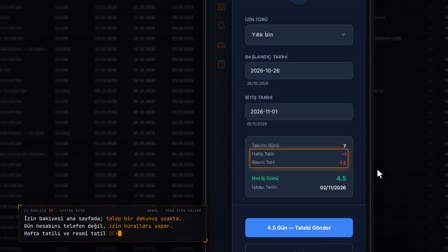
"Create Overtime Request" ("Fazla Mesai Talebi Oluştur") is opened from Manager Actions (Yönetici İşlemleri): scope (location, department, date), shift and time (overtime type, shift, duration, break, reason for request), employee list and summary. The planned time slot and the gross, break and net durations appear on the screen.
Shuttle and existing overtime warning on the employee list
Each row shows the person's shuttle route and any existing overtime request; on save, "Cancel" ("Vazgeç") or "Overwrite" ("Üzerine Yaz") is selected in the "Existing Overtime Request" ("Mevcut FM Talebi Var") warning.
Overtime shuttle impact: route and estimated departure time
"Shuttle Impact" ("Servis Etkisi") groups the selected people by route and estimated departure time; for post-shift overtime, the departure is found by adding the overtime duration to the shift end. No shuttle capacity check is performed.
Employee overtime confirmation: replying to the notification on the phone
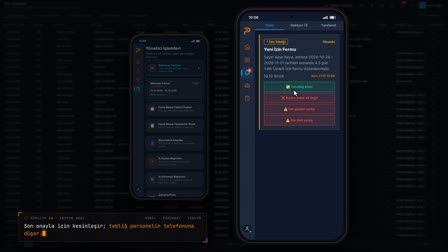
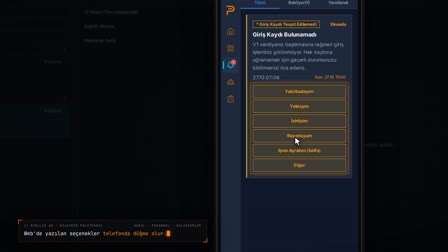
When the request is approved, and if the notification type is enabled, an overtime approval notification reaches the employee's phone; one of the options "I approve" ("Onaylıyorum"), "This overtime isn't mine" ("Bu fazla mesai bana ait değil") and "I have an excuse" ("Mazeretim var") is recorded.
How it works
- The department supervisor opens "Create Overtime Request" ("Fazla Mesai Talebi Oluştur") from Manager Actions (Yönetici İşlemleri) and selects the location, department and date.
- They select the overtime type, shift, duration and request reason; the planned time slot and the gross, break and net durations are shown.
- They select people from the employee list; each row shows the shuttle route and any existing overtime request.
- "Shuttle Impact" ("Servis Etkisi") groups the selected people by route and estimated departure time; after the summary, the request is saved and sent.
- When the request is approved, and if the notification type is enabled, an overtime approval notification arrives on the employee's phone; the employee responds.
Frequently asked questions
What does the Shuttle Impact analysis show?
It groups the selected employees by shuttle route and estimated departure time and gives the number of people; for overtime after a shift, the departure time is found by adding the overtime duration to the shift end. It does not check shuttle capacity.
What happens if a new overtime request is entered for someone who already has overtime?
The existing overtime appears on the row in the employee list. When saving, the warning "Existing Overtime Request" ("Mevcut FM Talebi Var") appears, and you choose either "Cancel" ("Vazgeç") or "Overwrite" ("Üzerine Yaz").
How does an employee respond to an overtime notification?
The approval notification has the options "I approve" ("Onaylıyorum"), "This overtime is not mine" ("Bu fazla mesai bana ait değil") and "I have an excuse" ("Mazeretim var"); the selected response is recorded and appears on the notification card.
How to use the overtime request app on the phone?
In manager mode, the Manager Actions › "Create Overtime Request" (Yönetici İşlemleri › "Fazla Mesai Talebi Oluştur") card is opened; the scope, shift and time, employee list and summary steps are completed, then "Save and Send Request" ("Talebi Kaydet ve Gönder") is tapped.
How is net overtime calculated on the phone?
If "Deduct Break?" ("Mola Düşülsün Mü?") is on, the break is deducted from the selected duration; the purple box on the screen shows the planned time slot and the gross, break and net durations.
What happens if an employee does not accept the overtime?
The employee's "This overtime isn't mine" ("Bu fazla mesai bana ait değil") or "I have an excuse" ("Mazeretim var") response is written to the notification record and appears on the card; the next step is the authorized user's decision.