Employee list: the right list in seconds, to Excel in one click.
Find, filter, export; bulk uploads are checked first.
The screens in this film were recorded from the Turkish interface of Pulsar HRM.
Personnel List: employee list and missing document tracking
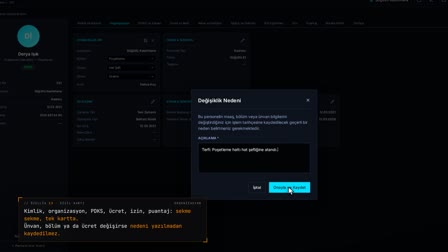
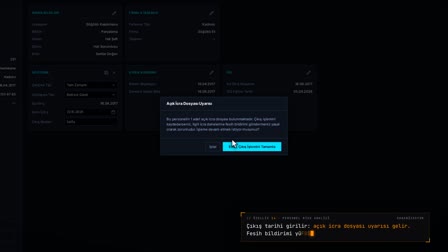
Who has no account and whose documents are missing is visible at a glance. With quick filters, the list and the count update with every click; the missing-documents list comes out in one click. Add any of 64 columns and right-click to export the on-screen list to Excel or PDF. In bulk uploads from Excel, the file is checked first; every changed field is written only with your approval.
Find employees: quick filter panel and multi select column filter
In Quick Filters (Hızlı Filtreler), status, gender, department, sub-department and job title chips are selected; the number of active filters and the total record count are shown. Every column can also be filtered with multi-select, just like in Excel.
Employees with missing documents and no account
On the list, account and document icons show whose user account has not been created and whose documents are missing. Filter Missing Documents (Eksik Evrakları Filtrele) leaves only those with missing items.
Saved column layout: 64 columns, a layout saved per user
In Column Settings (Sütun Ayarları), you choose which of the 64 columns to show. The layout is saved per user and per module and opens the same way on every computer.
Bulk employee import from Excel: check first, then upload
You select the file in Upload Excel (Excel Yükle); Check (Kontrol Et) counts the total, new, to-be-updated and error rows; phone format, Turkish ID number (TC) algorithm and an SGK number registered to another employee are shown as errors. Fields that are not checked are kept as they are.
Data export: export to Excel, export to PDF, export to CSV
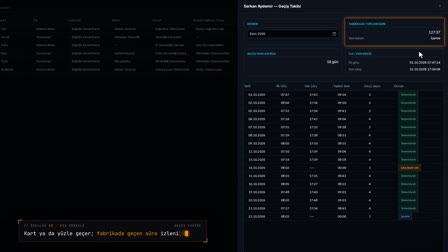
The columns and rows on screen are exported as Excel, PDF or CSV; for PDF with six or more columns, landscape orientation is suggested. The list can also be sent by email.
How it works
- In Personnel Management (Personel Yönetimi), the 🔑 and Documents (Evrak) columns show you who has no account and whose documents are missing.
- In Quick Filters (Hızlı Filtreler), you select status, gender, department, sub-department and job title; the list and the record count update with every click.
- With "Filter Missing Documents" ("Eksik Evrakları Filtrele"), you list employees with missing documents in one click.
- From right-click › "Column Settings" ("Sütun Ayarları"), you tick the columns you want and save.
- In Upload Excel (Excel Yükle), you select the file and press "Check" ("Kontrol Et"), review the result and upload the records you approve.
Frequently asked questions
What happens to rows with errors in a bulk employee import from Excel?
The file is checked first; rows with errors such as an invalid phone format, a failed Turkish ID number (T.C.) validation or an SGK number already registered to another employee are skipped and listed.
Does a bulk import overwrite existing employee information?
Only the fields you approve are written. Information that differs from the existing record is shown with its old and new values; anything you don't tick is kept as it is.
Which fields do Quick Filters filter by?
They filter by status, gender, department, sub-department and job title; the number of active filters and the total record count are shown in the panel.
How to export an employee list to Excel?
Right-click the list and choose Export to Excel (Excel'e Aktar); the columns and rows on screen are exported to the file. The same menu also offers export to PDF and export to CSV.
How to import employees from Excel?
Download and fill in the template, select the file in Upload Excel (Excel Yükle) and click Check; rows without errors are saved with Upload.
What happens if the Excel file has rows with errors?
The check step counts rows with errors separately and states the reason (phone format, Turkish ID number (TC) algorithm, SGK number already used by another employee); rows with errors are not uploaded.
How to find employees with missing documents?
Filter Missing Documents (Eksik Evrakları Filtrele) narrows the list down to those with missing items only and shows which document is missing.
Is the column layout saved?
Yes. The selected columns, their order and their widths are saved to the user and open the same way on every computer.
How many records are shown in the list?
On the bottom bar, you select 50, 100, 200, 500 or 1000 records; only this selection determines the list limit.
How to move from an employee list Excel template to employee management software?
Download the template from the Upload Excel (Excel Yükle) screen, fill it with the data from your existing spreadsheet and verify it with Check; rows without errors are uploaded. From then on the list is kept in Pulsar and exported to Excel when needed.